
Moderator Output Documentation
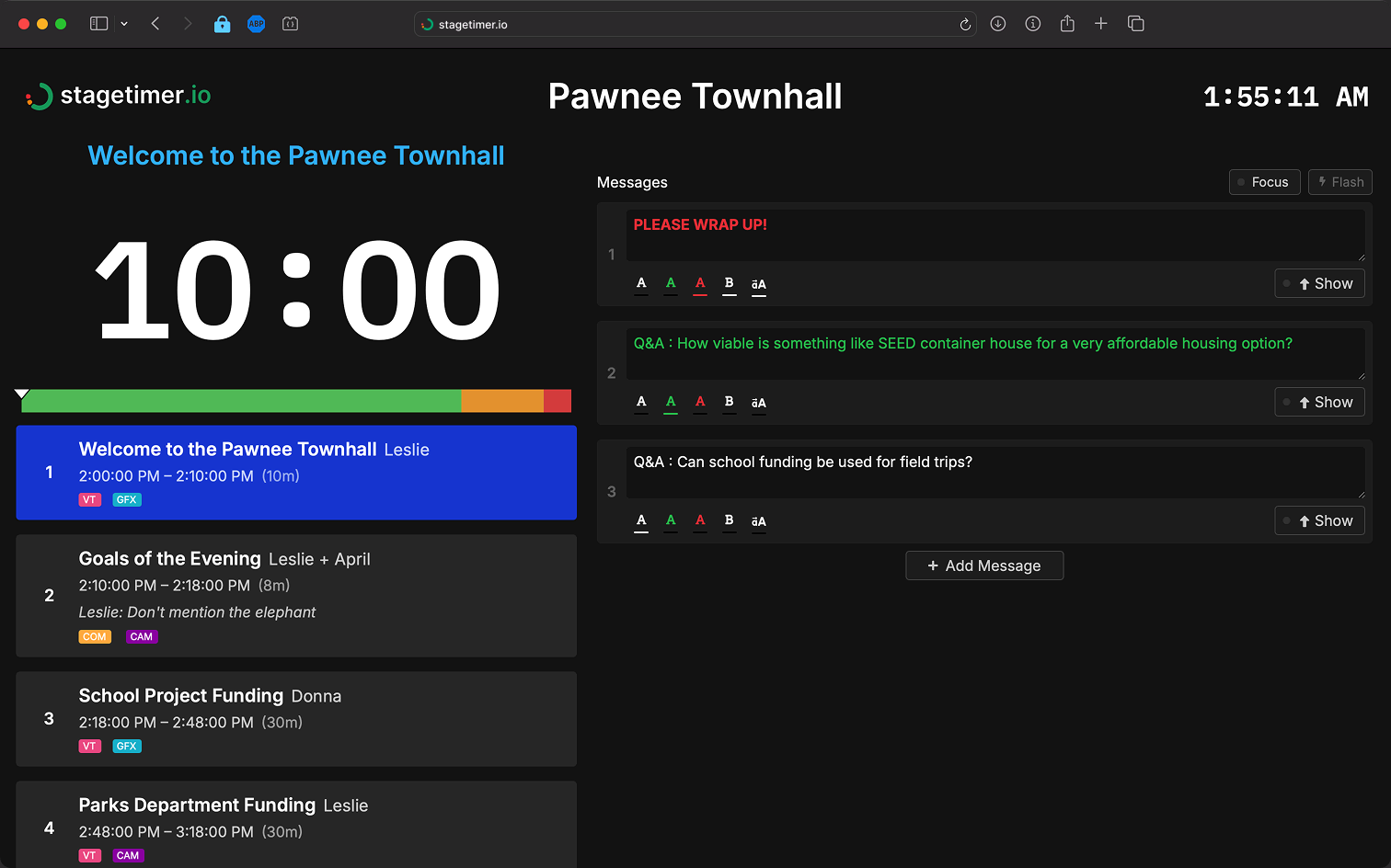
What is the Moderator Output?
The Moderator output combines a timer display, message controls, and agenda view in one interface. It’s designed for staff who need to communicate with presenters during an event without requiring full Controller access.
Who is it for?
- Event moderators managing Q&A or audience interaction
- Stage managers sending cues to presenters
- Support staff who need to communicate without timer control
What can people with the Moderator link do?
- View the active timer
- View all timers in the agenda
- Create, edit, and display messages
- View and manage all messages
Creating a Moderator Link
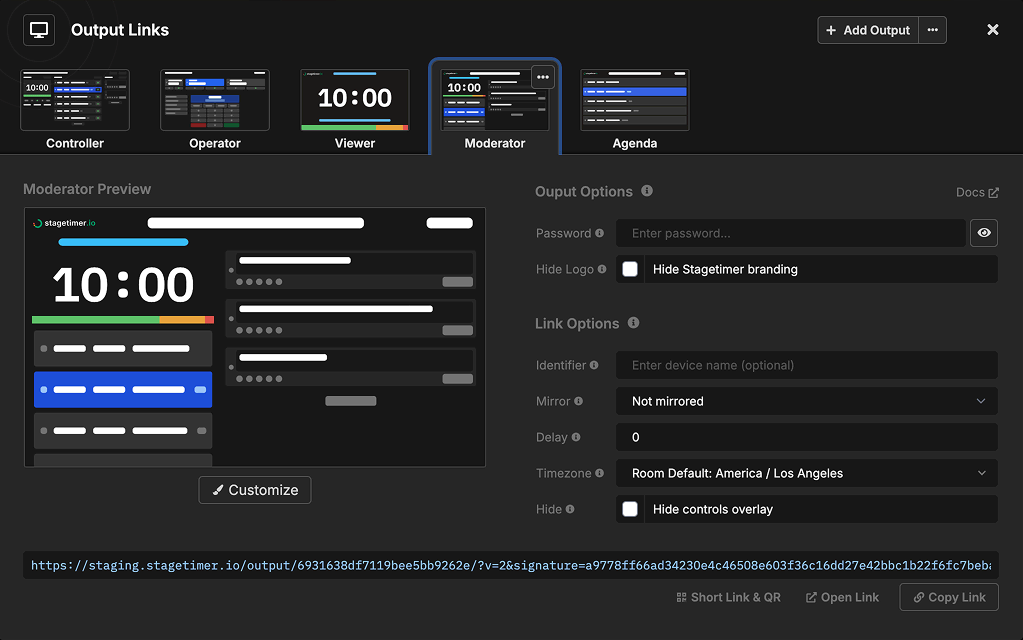
Access the Moderator output through the Output Links popup on your Controller page. From here you can:
- Configure link options (identifier, delay, timezone, hide controls)
- Copy the link or generate a QR code for easy sharing
- Set a password to protect access (paid plans)
- Hide the Stagetimer logo (paid plans)
All output links are secure by default with tamper-proof signatures. For complete details on creating and managing output links, see the Output Links.
What the Moderator Displays
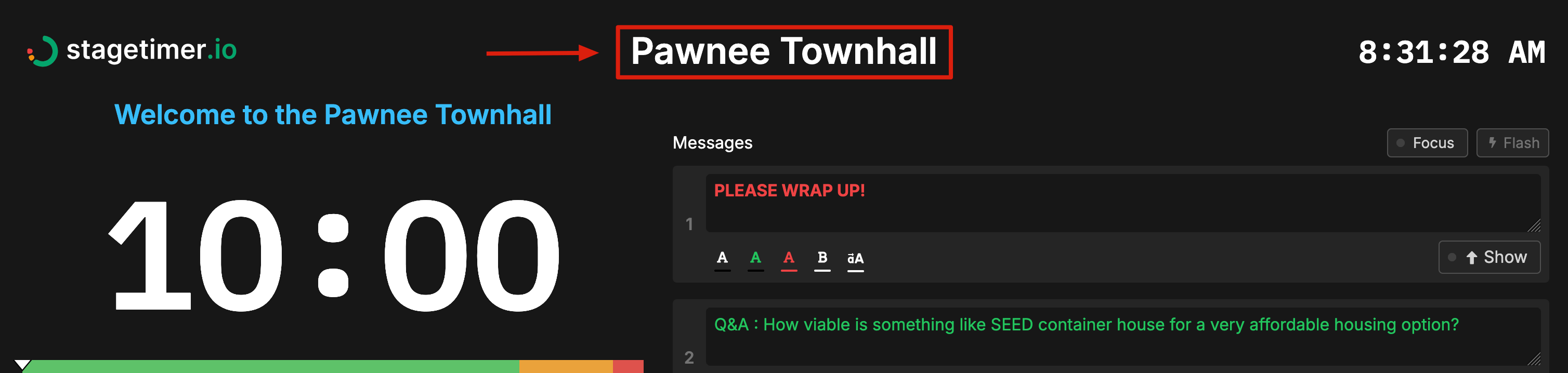
Title
The event title is set on the Controller page. Click the pencil icon beside the title at the top left corner of the Controller to edit it.
Time of Day
A clock displays the current time based on the room’s timezone setting.
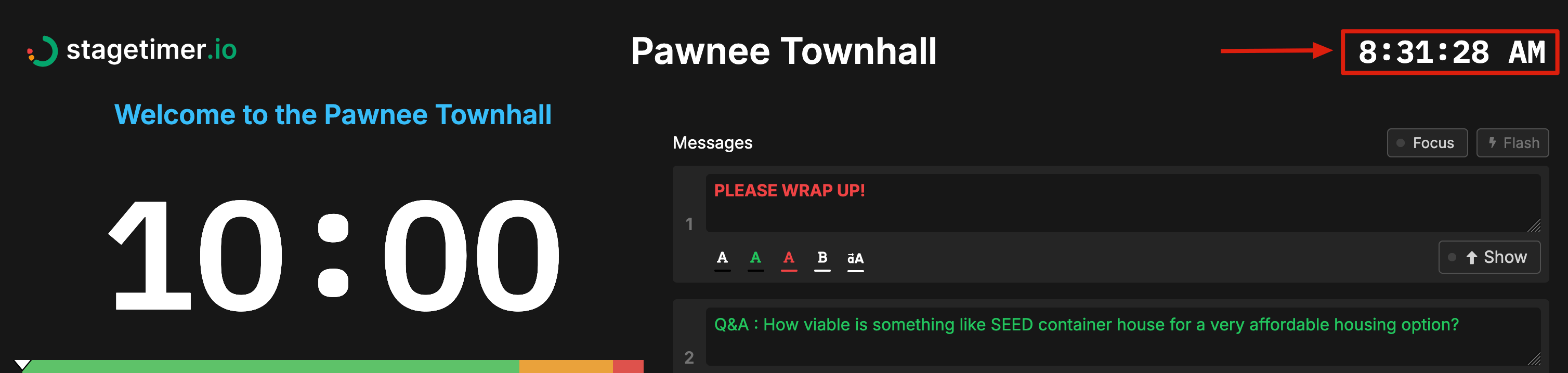
Every room has a timezone set in Room Settings (defaults to your location when created). This can be overridden per-output via Link Options, or per-element in the output customizer for Premium users.
Timer
The timer displays the currently active timer from your rundown. The appearance depends on your output configuration - it can show countdown, count-up, or time of day formats.
Messages
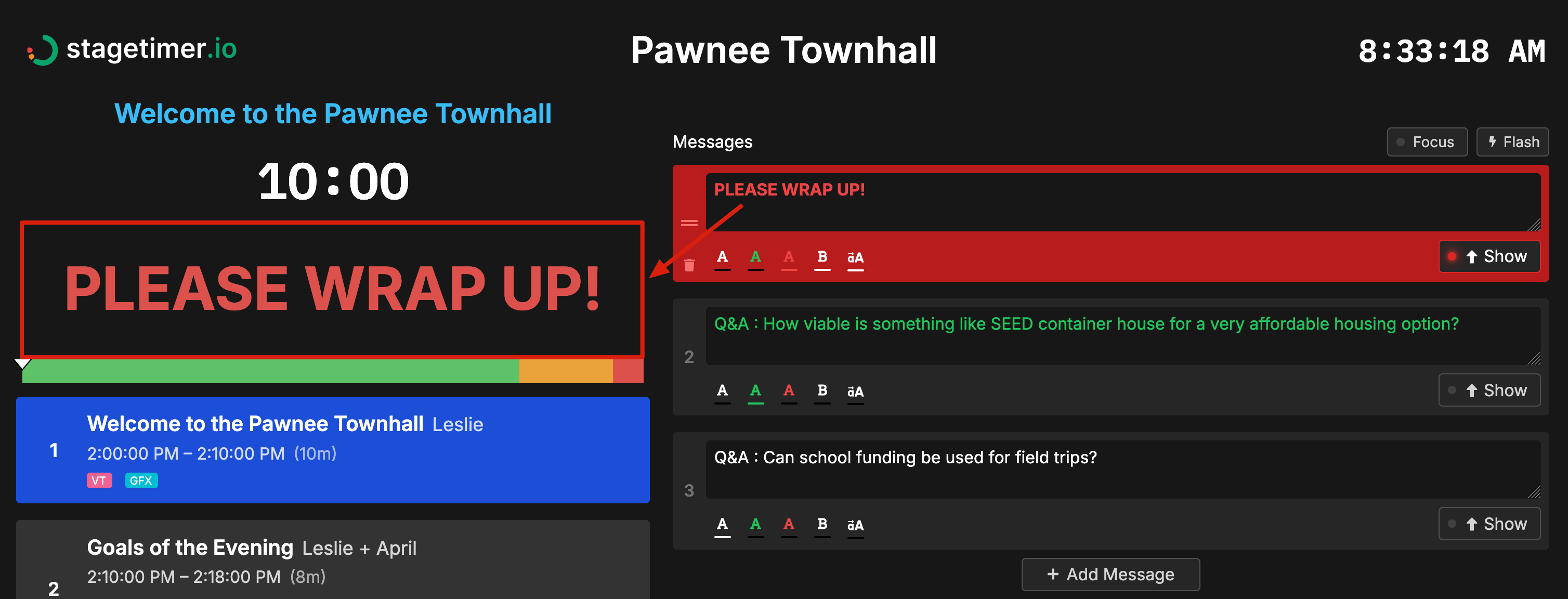
The message panel is the core feature of the Moderator output. It provides full control over messages without accessing the Controller:
- Create messages - Add new messages on the fly
- Edit messages - Change text, color, and formatting
- Show/Hide messages - Toggle message visibility with one click
- Focus mode - Display a message fullscreen for critical announcements
- Flash messages - Grab attention with a flashing effect
For complete details on message features, see the Messages.
Agenda
The agenda section displays all timers from your rundown with the active timer highlighted. This helps moderators track event progress and know what’s coming up.
Working with Messages
The Moderator output is particularly useful for managing audience interaction. A common workflow:
- Collect questions using the Submit Questions feature, which provides a public link where audience members can submit questions
- Screen submissions - A dedicated moderator reviews incoming questions
- Display approved questions - Show selected questions to presenters via messages
This setup allows one person to handle audience Q&A while another runs the timers, keeping the show running smoothly.
Customizing the Moderator
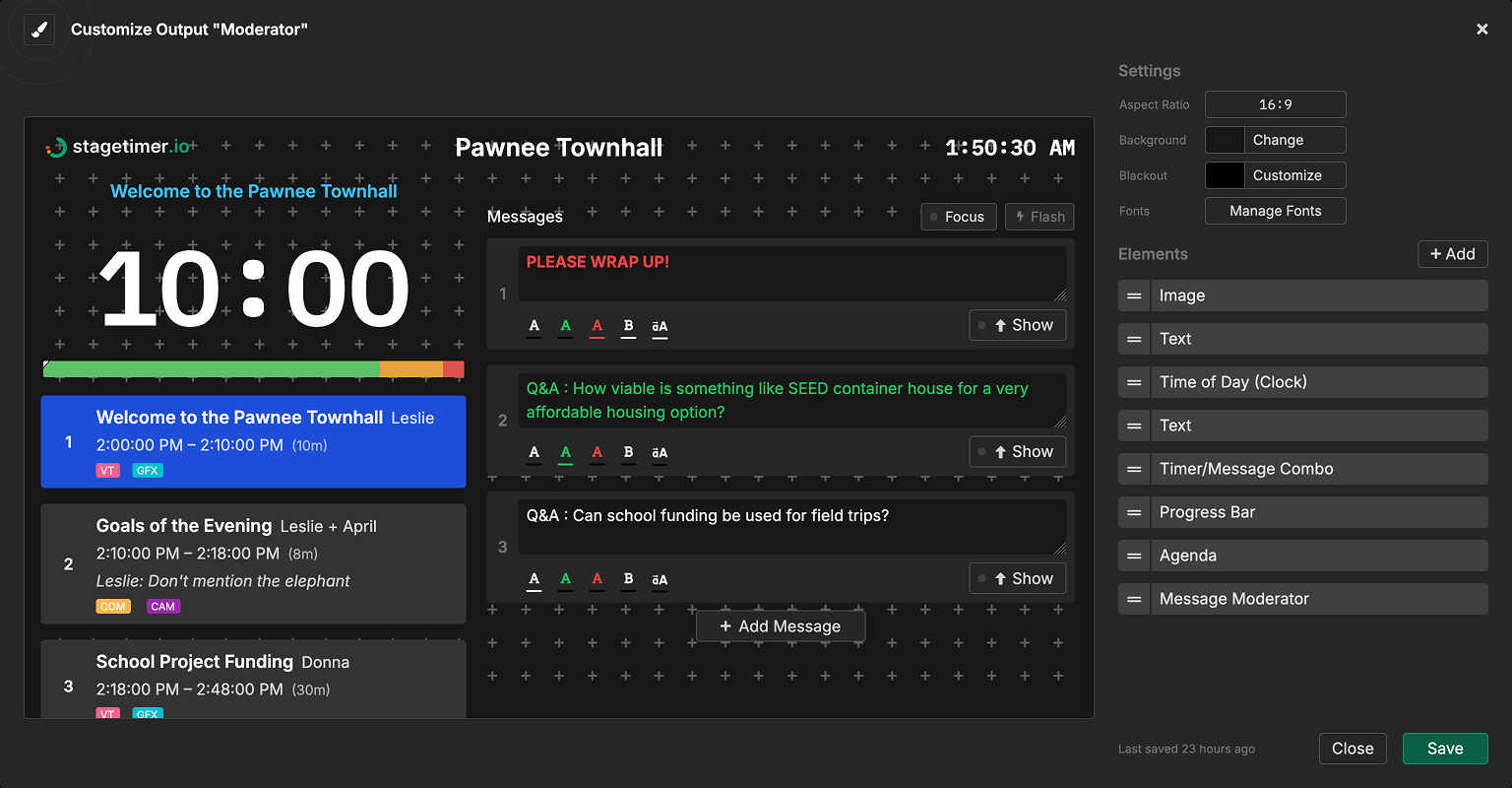
Premium users can fully customize the Moderator output using the drag-and-drop editor. Click Customize in the Output Links popup to:
- Rearrange and resize elements (timer, messages, agenda)
- Add or remove elements as needed
- Configure which information to display
- Set custom backgrounds and aspect ratios
Pro users can hide the Stagetimer logo via the output options. Free users can share the default Moderator output but cannot customize it. See the Pricing page for plan details.
For complete customization options, see:
- Custom Outputs - Editor interface and output settings
- Moderator Element - Detailed message control settings
Overlay Controls
When hovering over the Moderator output, overlay controls appear in the corner providing quick access to:
- Fullscreen mode - Expand to fill the screen
- Sound toggle - Enable/disable audio notifications
- Mirror controls - Flip display for teleprompter use
These controls can be hidden via the Hide Controls Overlay option in Link Options when creating your output link.